
DaVinci Resolve
Real-world video editing and color grading benchmark using Blackmagic Design's DaVinci Resolve.
Instructions
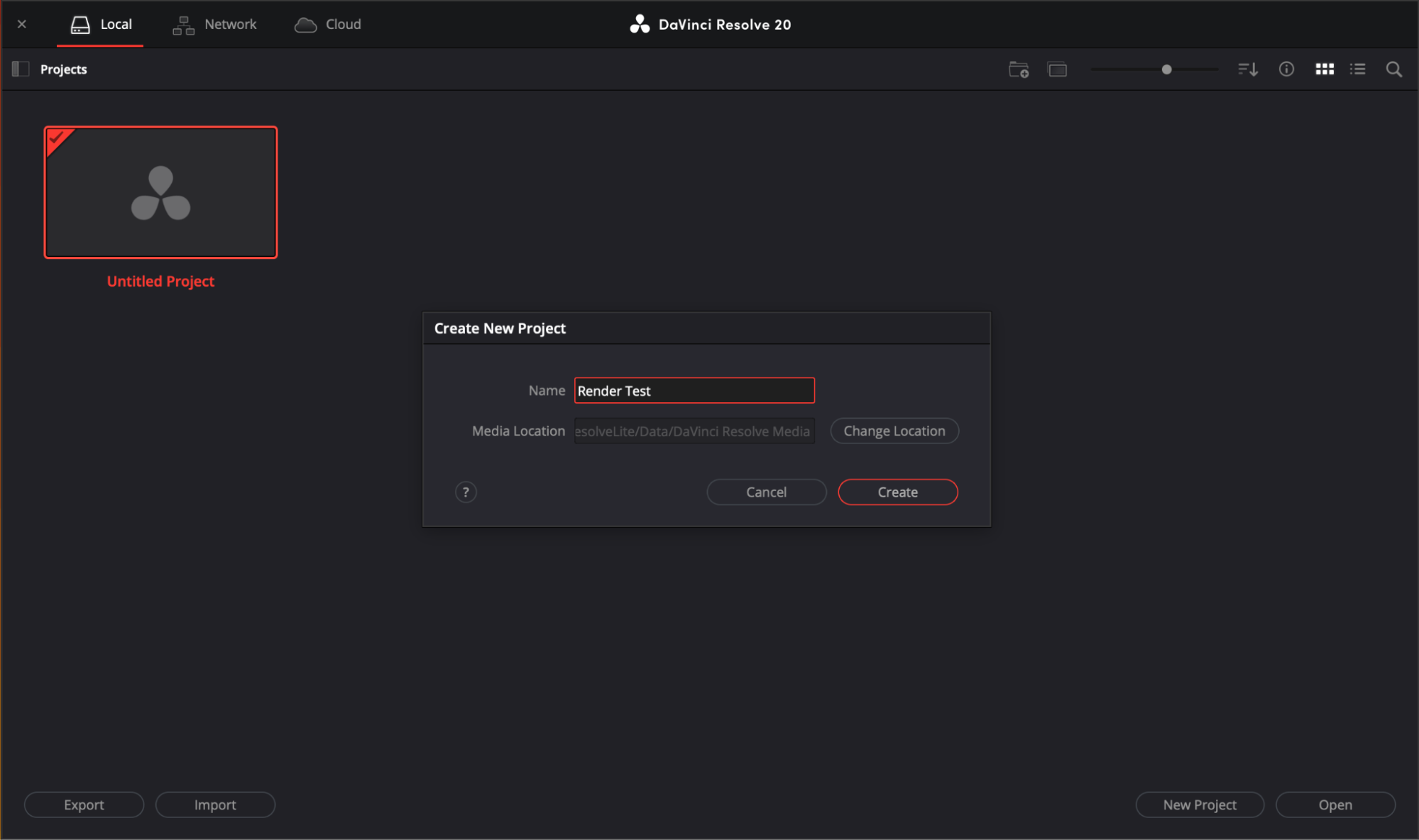
Create a blank project.
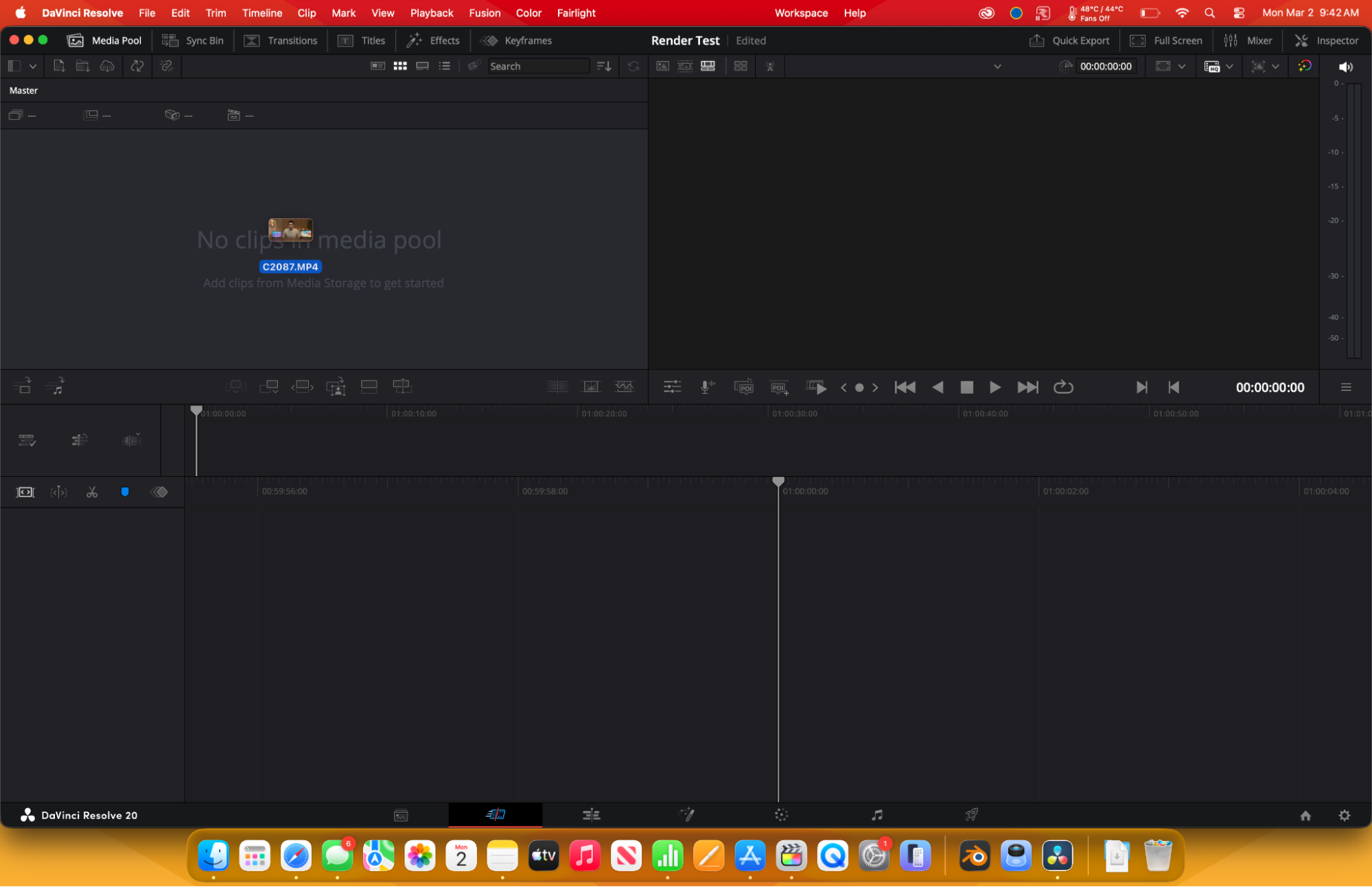
Drag ‘C2087.MP4’ to the media pool. This works best if all files are on your local drive - you may need to grant permission for DaVinci Resolve to access file locations.
Restore the project archive in the Project Manager.
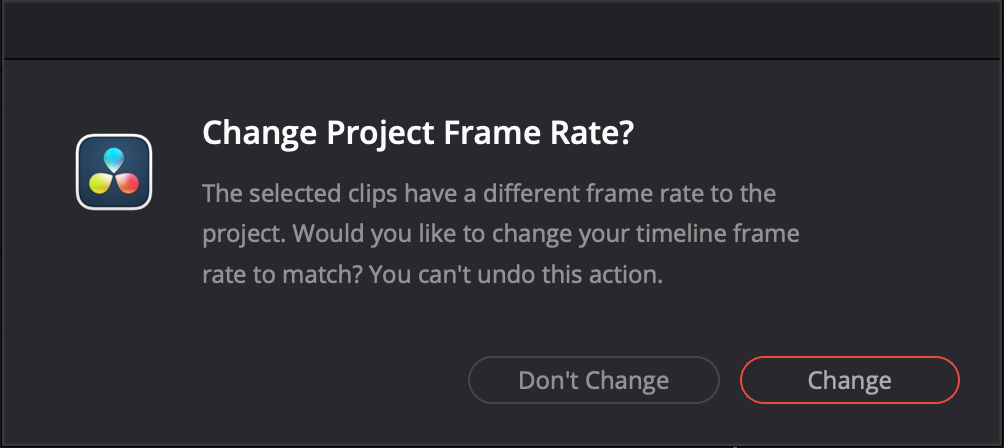
You may also see a pop up asking to change project frame rate; accept the change.
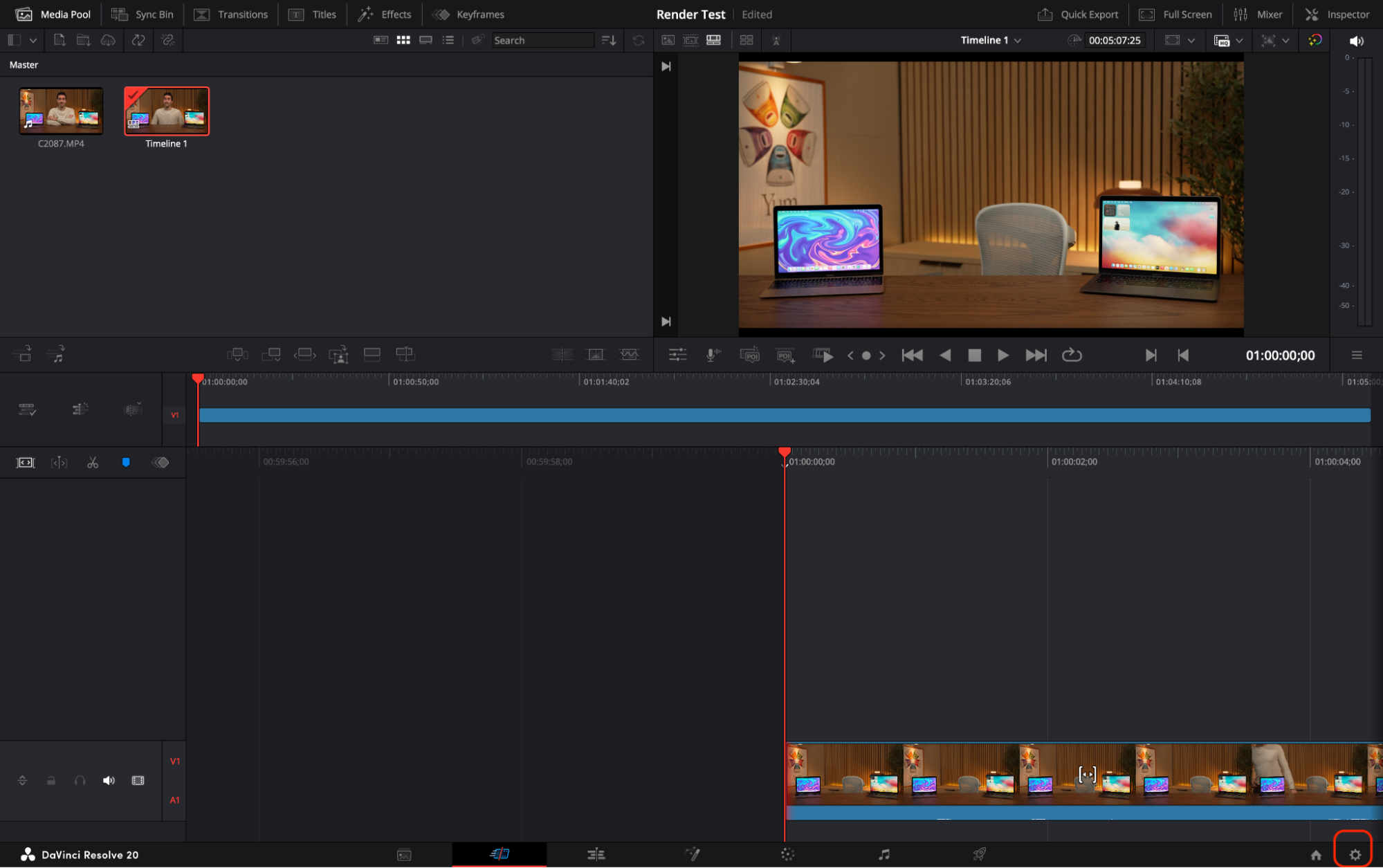
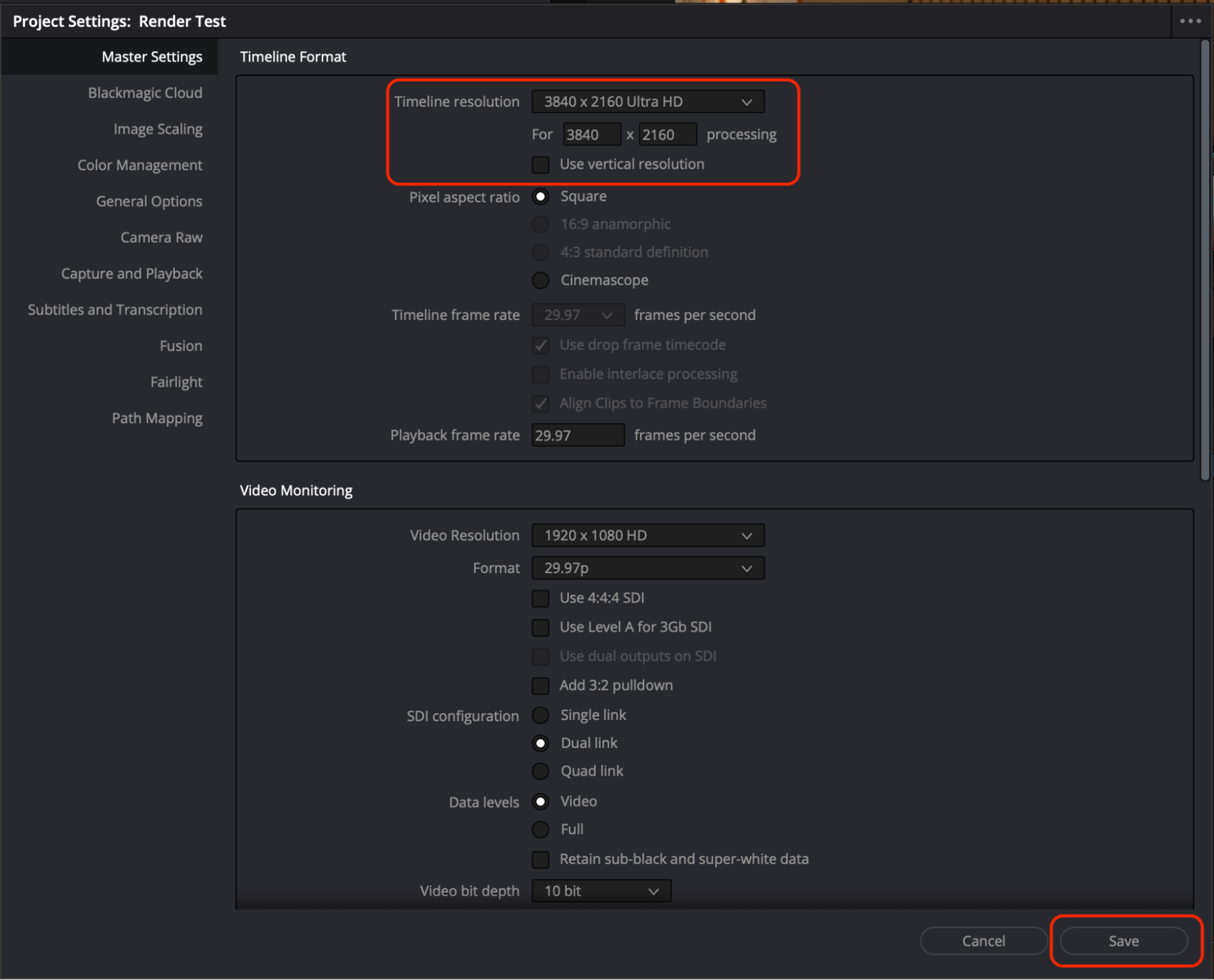
Drag the clip C2087.MP4 into the timeline. Then, click the gear icon in the lower right corner.
Change the timeline Resolution to 3840x2160 Ultra HD and click Save.
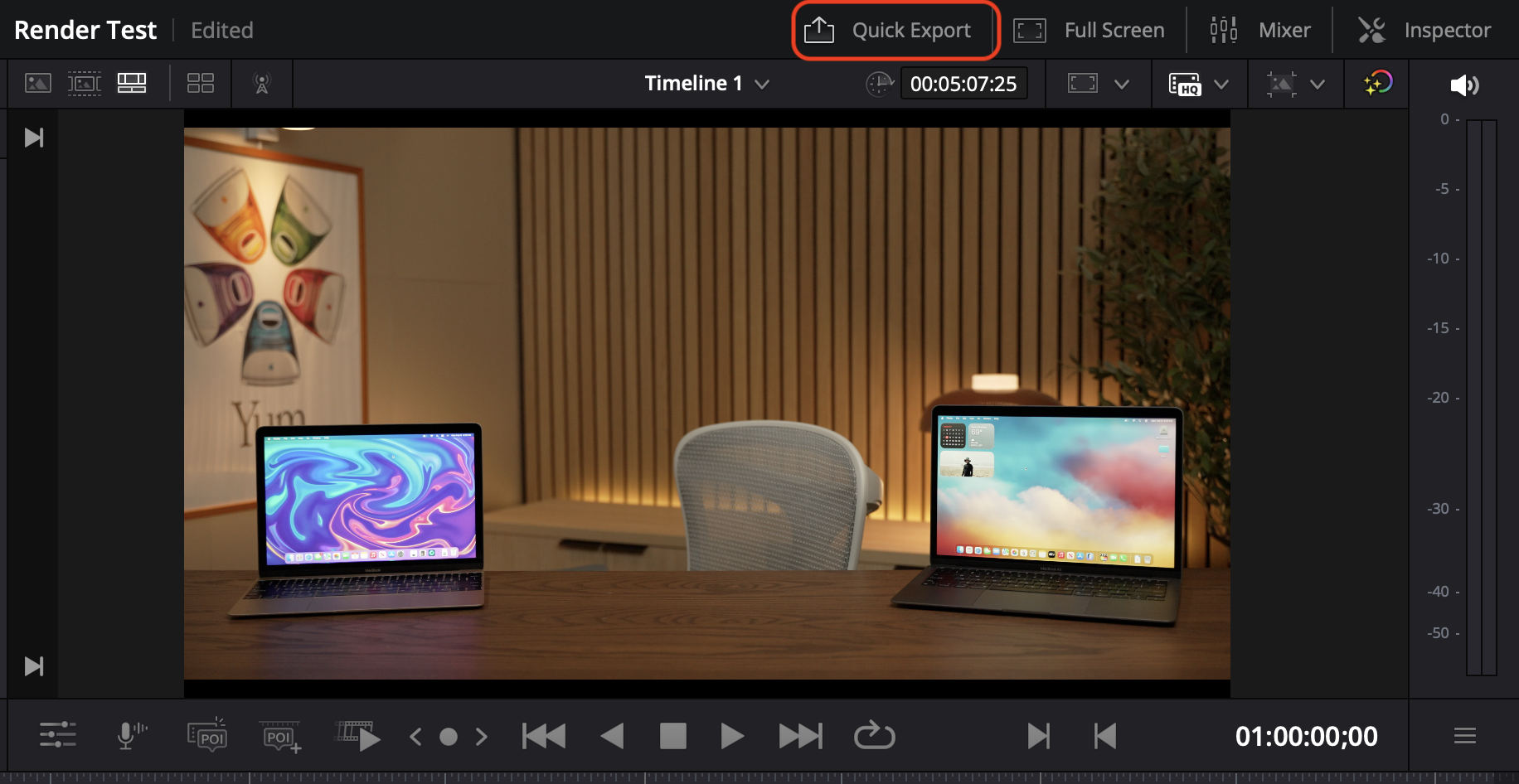
Next, navigate to ‘Quick Export’ above the viewer window.
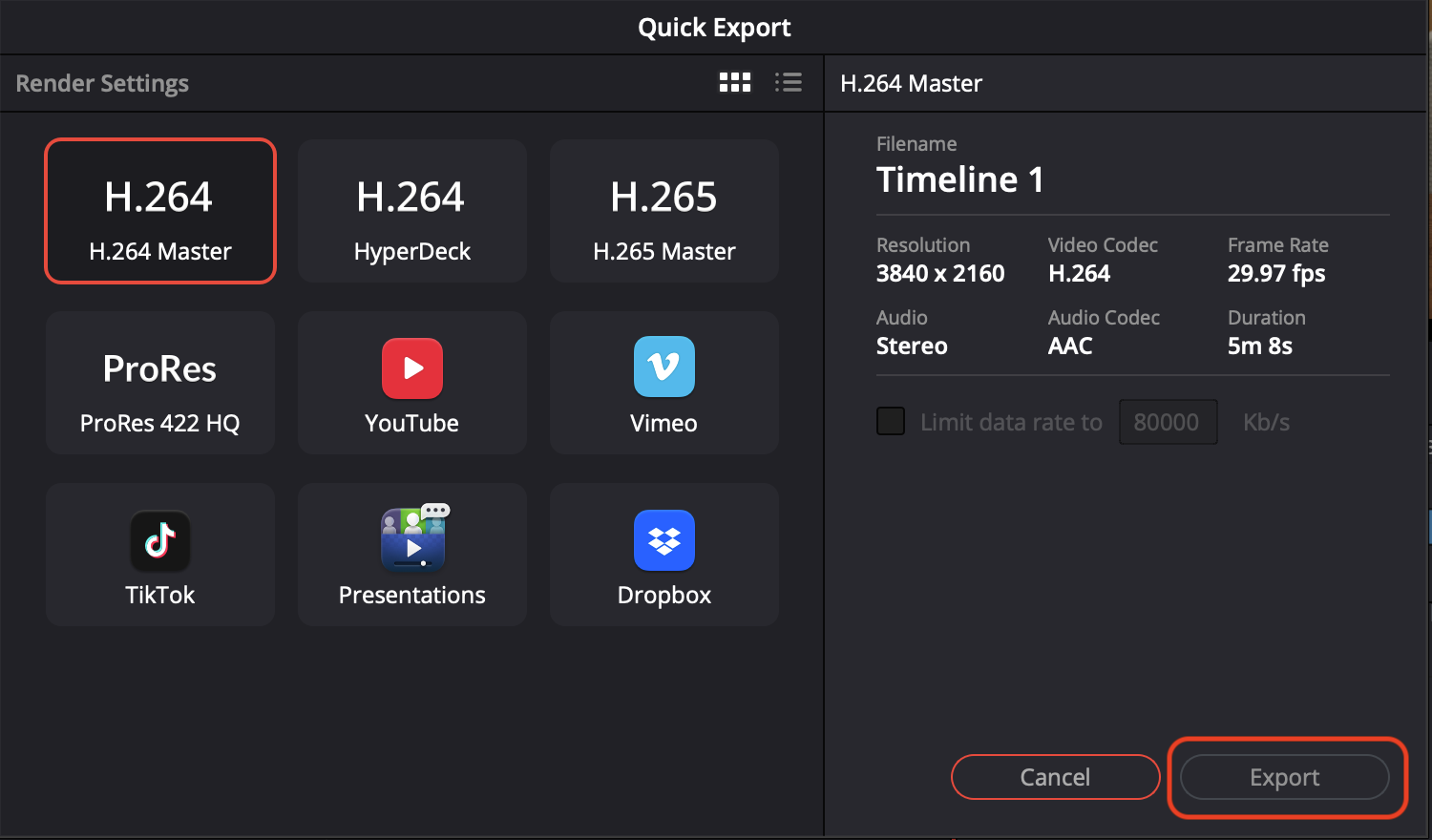
Set the format to H.264 Master. The resolution should be 3840x2160 and the duration should be 5m 8s. Click ‘Export’ to bring up the file location selector. Pick somewhere on the same drive as the source clip. For best results, use the internal drive (e.g. the desktop). As soon as you click Save, start the timer.
A progress bar will appear as the project timeline is rendered. Once it completes, stop the timer.
Sign In to Submit Results
To contribute your benchmark data and help the community, please sign in.