
Blender Classroom
The classic Classroom scene benchmark for Blender, testing rendering performance using Cycles.
Instructions
When opening Blender, note the device (CPU or GPU) on the right side.
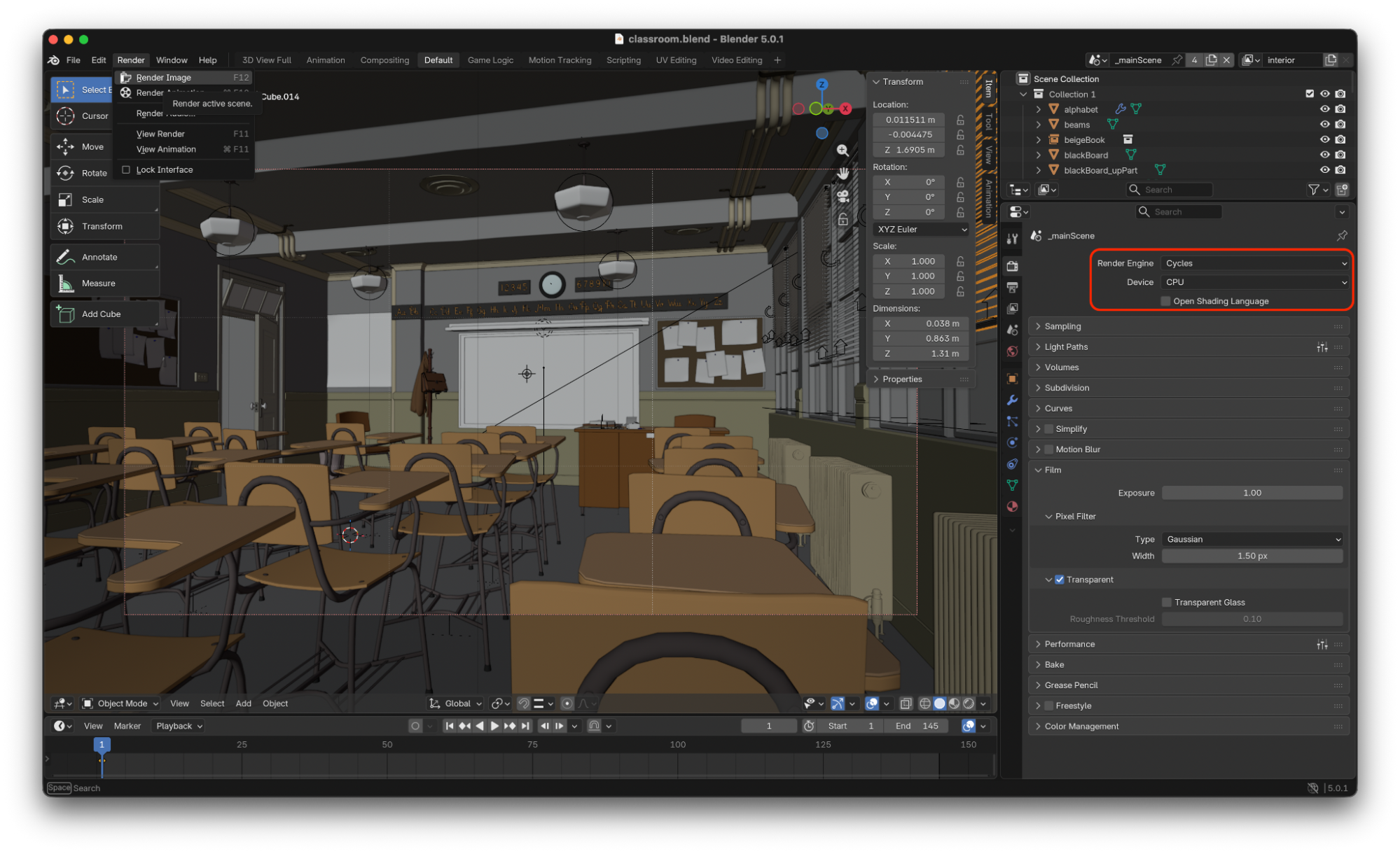
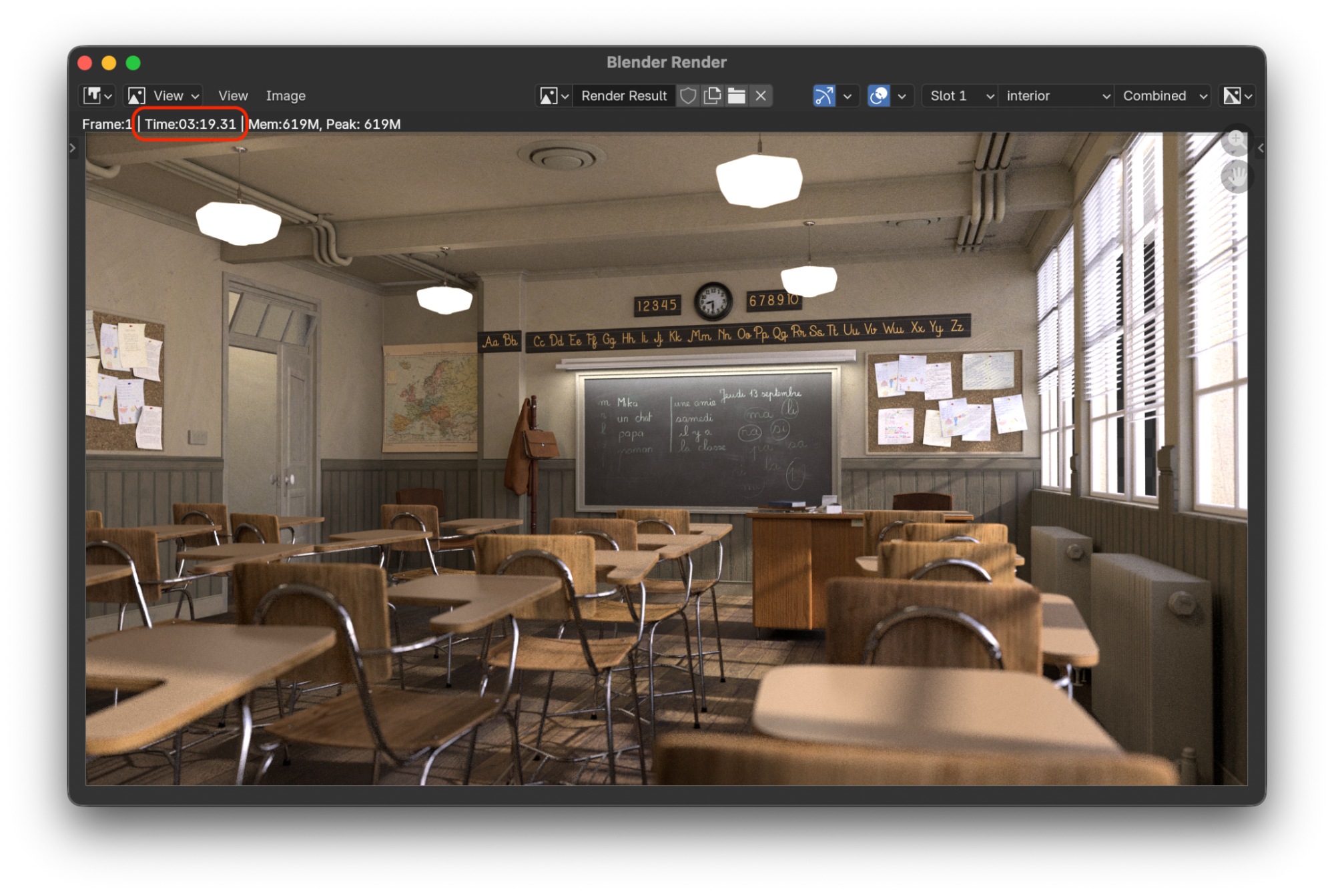
Click ‘Render’ -> ‘Render Image’ and note the time displayed in the render window. This is the CPU time.
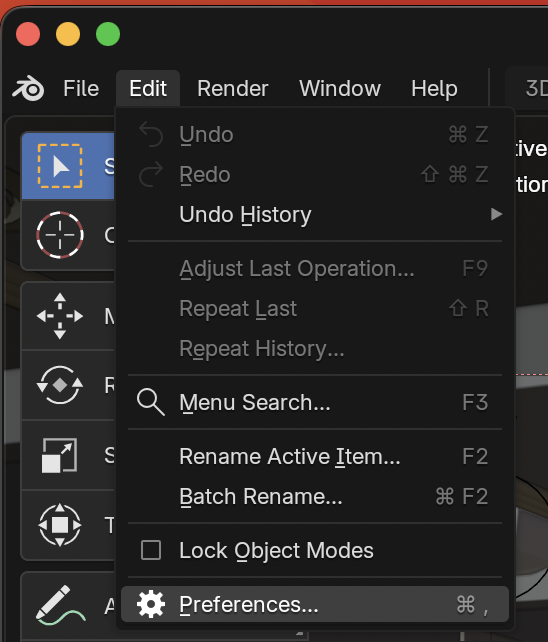
Click ‘Edit’ -> ‘Preferences’.
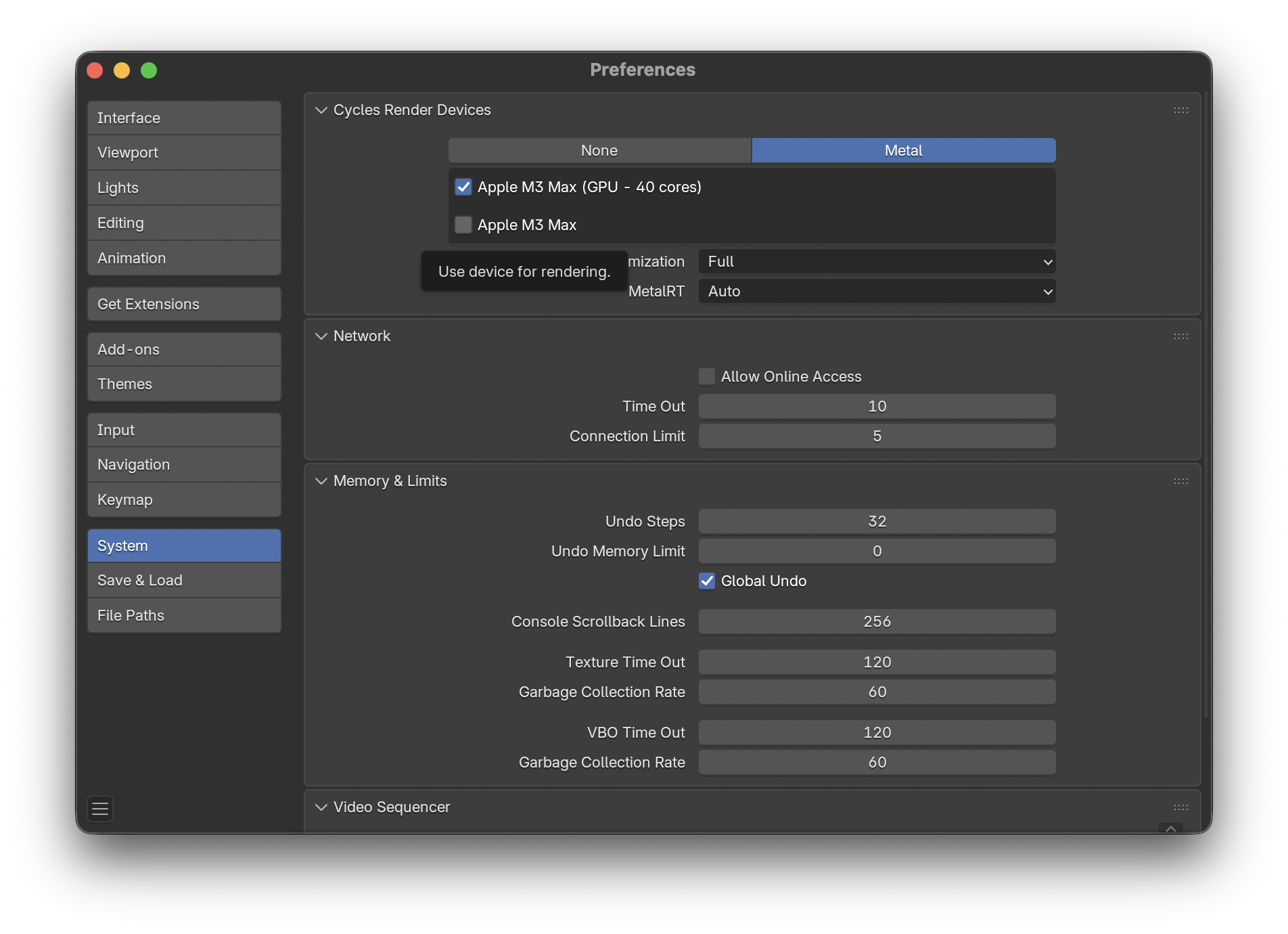
Under ‘System’, ensure that your GPU is properly selected. It should show up as your Mac’s SOC with ‘(GPU - X Cores)’ under the Metal render tab.
In the main Blender window, change the ‘Device’ under ‘Render Engine’ to GPU
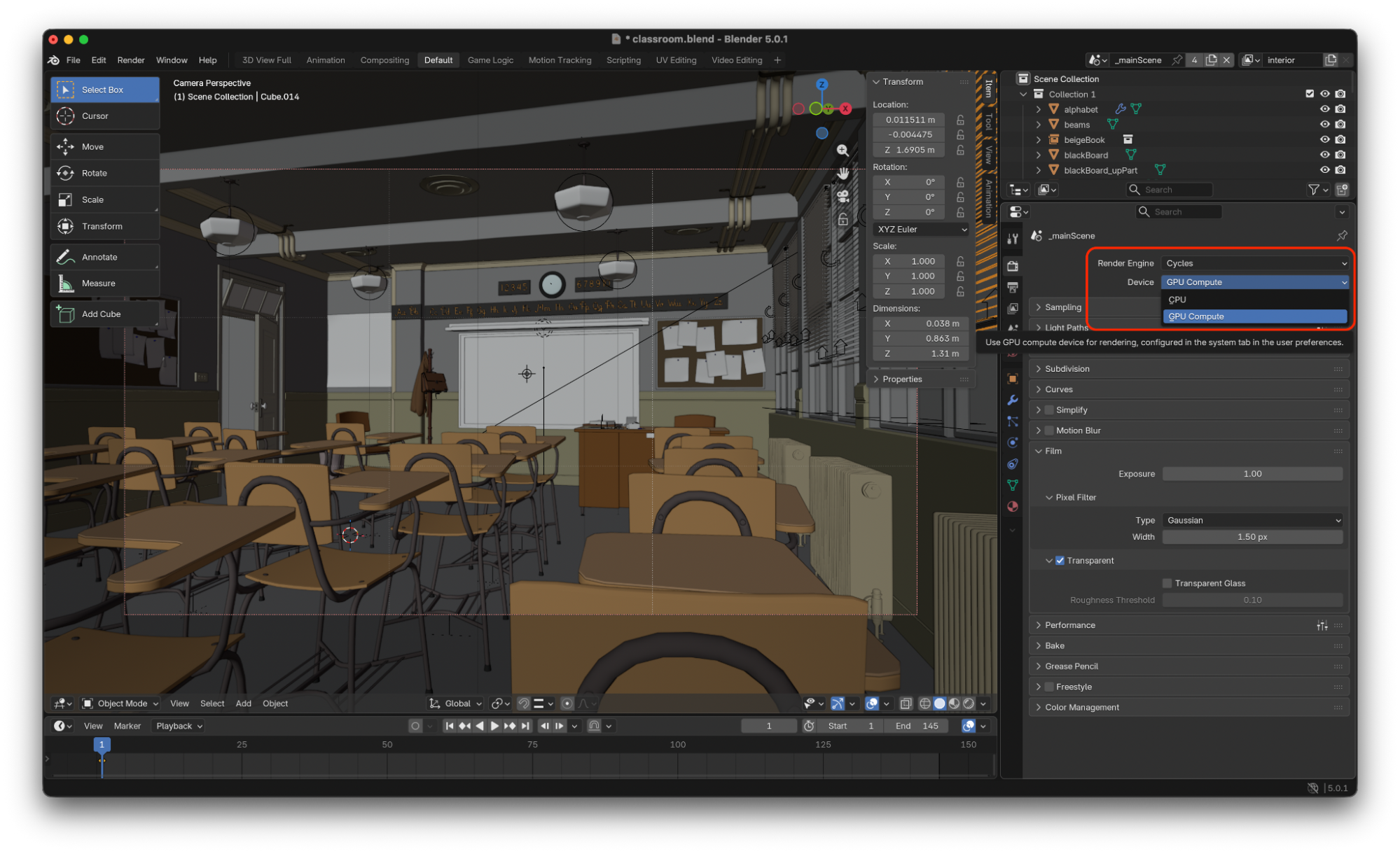
Click ‘Render’ -> ‘Render Image’ again. IMPORTANT NOTE: If this is your first time running the render, you will see a blank image with the text ‘X/X Render Kernels loaded (may take a few minutes the first time)’. DO NOT use the time from this render as it is compiling kernels. Wait for the render to finish, close the window, and then click ‘Render’ -> ‘Render Image’ again to get an accurate time.
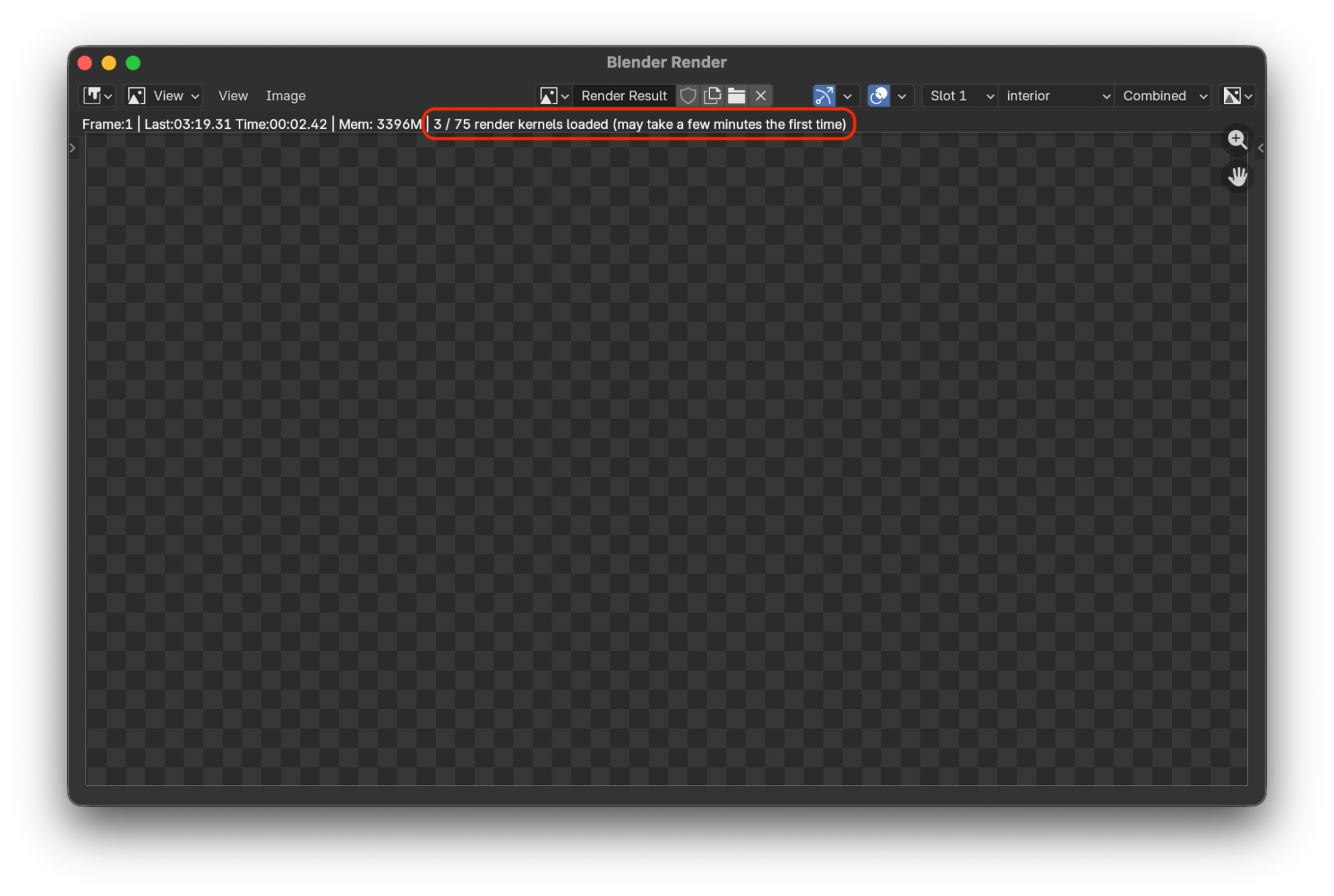
Note the time displayed in the render window. This is the GPU time.
Sign In to Submit Results
To contribute your benchmark data and help the community, please sign in.